To fix AI caption pacing for fast and slow speakers, video editors must adjust the timing boundaries of auto-generated text blocks so they align with human reading speeds, rather than strictly mirroring the audio waveform. When a speaker talks rapidly, combine short caption segments into longer blocks to prevent rapid flashing that overwhelms the viewer's cognitive load. For slow speakers, split the AI-generated text into shorter phrases and set the caption out-points to disappear during long pauses. This prevents the text from lingering awkwardly or spoiling upcoming words before they are spoken.
Understanding Viewer Cognitive Load and Reading Speeds
AI transcription tools align text to the exact millisecond a word is spoken. While this creates a mathematically perfect sync, it often ignores the viewer's cognitive load. According to the BBC subtitle guidelines, standard reading speeds for adult viewers range from 160 to 180 words per minute (WPM), which translates to roughly 14 characters per second.
When a speaker exceeds this rate, AI captions that display only one or two words at a time will flash on screen too quickly to be read. Conversely, when a speaker talks far below this rate, the text remains static for too long, causing the viewer's attention to drift away from the video's visual elements. Editors must treat AI auto-captions as a rough cut, manually refining the timing to meet accessibility standards while maintaining the rhythm of the edit.
Identifying Problematic AI Pacing in the Timeline
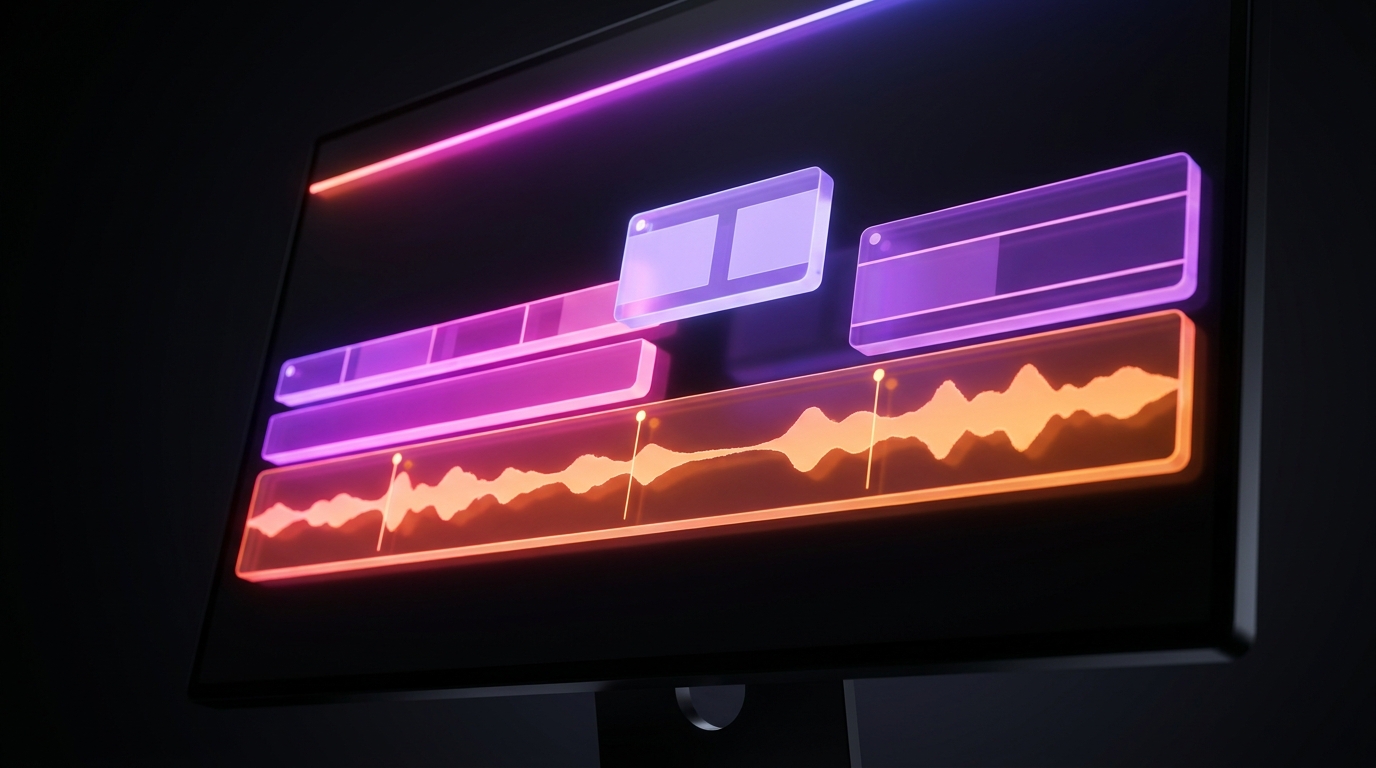
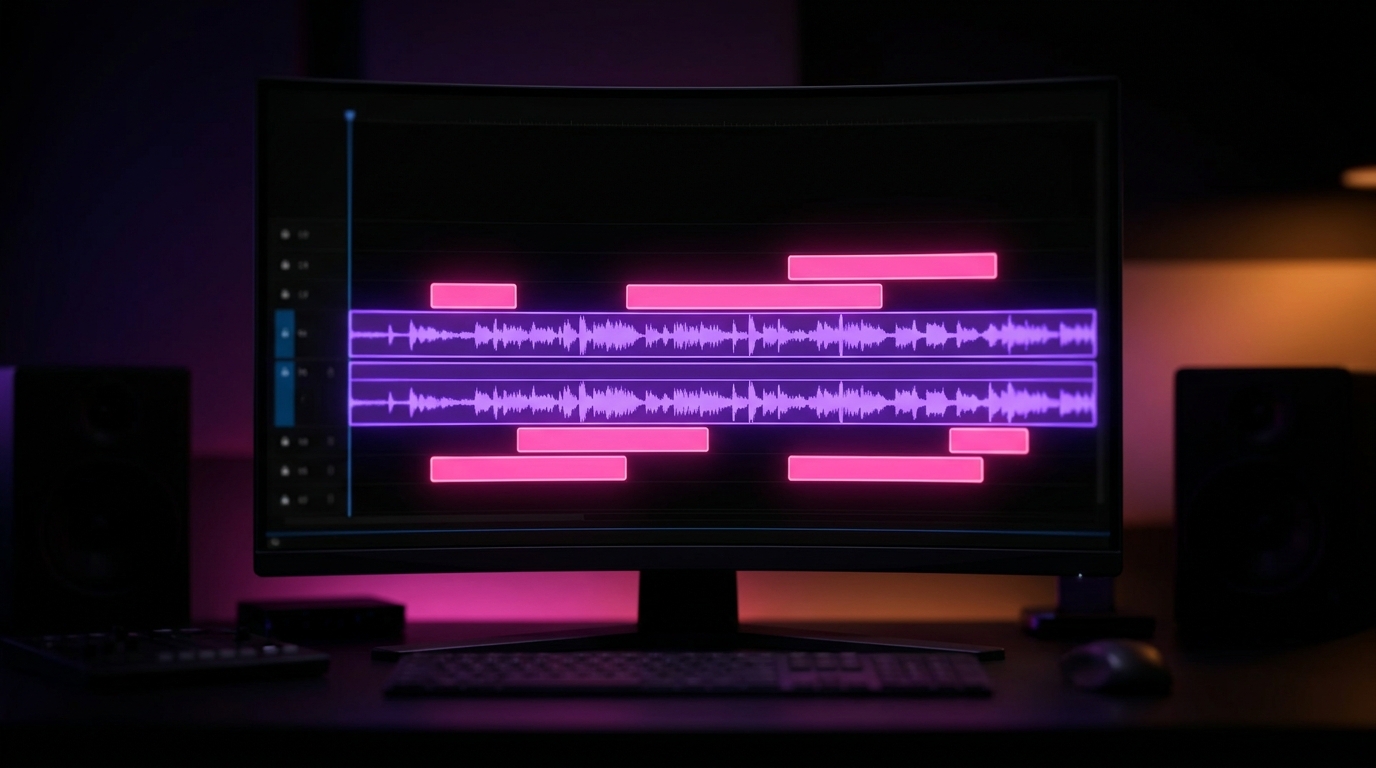
Before adjusting pacing, editors need to identify where the AI failed to match human reading speeds. In your non-linear editor (NLE) or clipping software, look for visual anomalies in the caption track. Extremely narrow text blocks usually indicate a fast speaker where the AI has isolated single words. Unusually long, continuous blocks often indicate a slow speaker or a rambling sentence without grammatical breaks.
When you compare AI clipping tools, you will notice that different engines group words differently. However, almost all AI engines prioritize audio sync over reading speed, meaning the responsibility of fixing these timeline anomalies falls to the editor.
Adjusting Captions for Fast Speakers
When dealing with rapid-fire delivery, the primary goal is to reduce the frequency of visual cuts on the screen. Viewers process a single six-word sentence faster than they process three consecutive two-word phrases flashing in rapid succession.
To adjust this in your timeline, manually merge the AI-generated text blocks. Combine the rapid, fragmented words into a single, logical grammatical clause. Next, extend the in and out points of this new, larger text block to cover the entire duration of the spoken phrase. This keeps the text on screen longer, giving the viewer's brain time to process the information without feeling rushed.
Ensure your text remains highly legible by pairing this adjusted pacing with high-contrast design. You can review standard practices for this in our guide to caption background colors and contrast.
Balancing Verbatim Text with Readability
While AI tools default to verbatim transcription, strict adherence to every spoken sound can hinder reading speed, especially with fast speakers. The W3C media accessibility requirements note that while verbatim captions are preferred, reading rates and viewer comprehension must be considered.
If a fast speaker stumbles, stutters, or uses filler words (such as "um" or "you know"), the AI will transcribe them. This unnecessarily clutters the screen and forces the text to flash faster to keep up with the audio. Editors should delete these non-essential filler words from the caption track. Removing them allows the core, meaningful text to stay on screen slightly longer, aligning the visual pacing with the viewer's natural reading rhythm without altering the original message.
Adjusting Captions for Slow Speakers
Slow speakers present the opposite problem. AI tools often group a slow speaker’s words into a single, long sentence that sits on the screen for several seconds. If a speaker pauses for dramatic effect, a lingering caption reveals the end of the sentence before the speaker actually says it, ruining the delivery.
To fix this, split the caption block at the exact moment the pause begins. Set the out-point of the first block so the text disappears during the silence, leaving the screen clean. Then, set the in-point of the second block to appear exactly when the speaker resumes talking. This preserves the pacing and tension of the delivery.
Choosing clear, legible typography also reduces cognitive friction during these fragmented, slower sentences. Our breakdown of the best caption fonts covers how typeface choice impacts readability when text is dynamically appearing on screen.
Standardizing Your Workflow Across Platforms
Different platforms have varying expectations for caption formatting, but all prioritize readability. For instance, YouTube's captioning guidelines recommend ensuring that captions stay on screen long enough to be read comfortably, which sometimes requires adjusting the boundaries slightly beyond the exact audio markers.
When editing for short-form platforms like TikTok or Instagram Reels, the pacing is generally faster, but the same cognitive rules apply. If the viewer has to re-watch the video just to read a flashed caption, the pacing is too fast. If they read the punchline three seconds before the speaker delivers it, the pacing is too slow.
Streamlining the Edit with Viral Day
When refining caption pacing across multiple clips, a dedicated clipping platform can streamline the manual adjustment process. Viral Day provides a professional video editor interface that includes automatic captions with styles derived from After Effects compositions. Editors can utilize bulk editing features to adjust text, merge blocks, and refine timing efficiently.
The platform supports source videos up to 10 hours and includes analysis across 18 viral-potential signals to assist with the initial clip selection. For editors standardizing their workflow, Viral Day's entry plan starts at $9.99 per month for 30 hours of video processing.