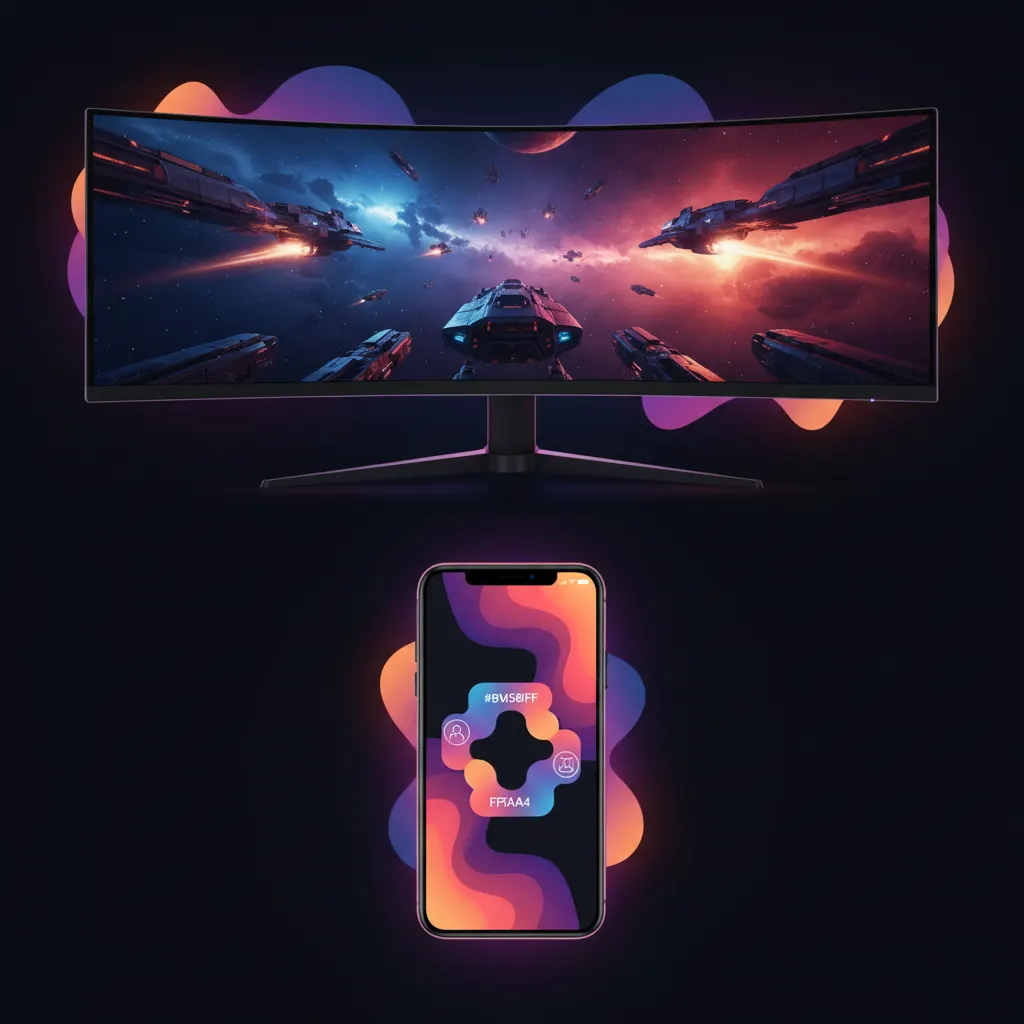
Cropping ultrawide 21:9 gameplay into a 9:16 vertical clip requires dividing your screen into a stacked layout rather than relying on a standard center crop. Because a 21:9 monitor captures a massive horizontal field of view, slicing a standard 9:16 window directly out of the middle discards critical heads-up display (HUD) elements like minimaps, ammo counters, and cooldown timers. To preserve the viewer experience on mobile platforms, creators must duplicate the video track, crop the central action for the main feed, and overlay specific UI elements or a facecam in the upper third of the vertical canvas.
The Aspect Ratio Math: Why Center Cropping Fails
Ultrawide monitors typically output at a 21:9 aspect ratio (often a resolution of 3440x1440p). Vertical video platforms require a 9:16 aspect ratio (1080x1920p). The mathematical difference between these two formats is extreme. If you apply a standard center crop to a 21:9 video to make it 9:16, you are throwing away more than 70% of the horizontal visual data.
In standard 16:9 gameplay, a center crop often retains enough of the action to make sense to the viewer. When you crop 16:9 to vertical without losing focus, the UI elements are closer to the center of the screen. In a 21:9 format, game developers intentionally push the HUD to the far left and right edges to keep the center clear for immersion. A simple center crop on ultrawide footage means your viewers will never see your health bar, your minimap, or the kill feed.
The Stacked Layout Technique for Ultrawide Footage
To solve the missing UI problem, editors use a stacked layout. This involves layering multiple copies of the same video file on top of each other in a non-linear editor (NLE) like Premiere Pro, DaVinci Resolve, or Final Cut Pro, and masking out specific sections.
Here is the standard workflow for converting 21:9 to 9:16:
- Set the Sequence: Create a new project sequence with a 1080x1920 resolution (9:16).
- The Gameplay Base (Track 1): Import your 21:9 footage and place it on the bottom track. Scale the footage up until the vertical height fills the frame. Reposition the X-axis so your crosshairs or main character are centered. This layer will serve as the primary action feed, occupying the bottom two-thirds of the screen.
- The Facecam or Minimap (Track 2): Duplicate the footage onto a second track above the first. Apply a crop or mask effect to isolate just your facecam or a critical piece of the HUD (like the minimap). Scale this masked element up and position it in the top third of the vertical frame.
- The Secondary UI (Track 3): If your game relies heavily on a second UI element (like an inventory or party health bars located on the opposite side of the ultrawide screen), duplicate the footage a third time. Mask that specific element and place it neatly below your facecam.
By stacking these elements, you rebuild the context of the ultrawide screen into a vertical format that makes sense to a mobile viewer.
Limitations of Traditional Auto-Framing Tools
Many modern editing programs offer automated tools designed to reframe horizontal video for vertical platforms. For example, Final Cut Pro offers Smart Conform, which analyzes clips for prominent motion or faces and automatically keyframes the crop to follow the action.
While these tools work well for traditional camera footage, they frequently fail on 21:9 gaming footage. Standard algorithms track high-contrast movement. In a first-person shooter, the algorithm will accurately track the center crosshairs, but it lacks the contextual awareness to recognize that a static box in the far-right corner is a vital minimap. Consequently, relying solely on basic auto-framing for ultrawide gameplay results in a well-tracked center, but a complete loss of the surrounding game state.
Platform Specifications for Vertical Gaming Clips
When exporting your stacked 9:16 layout, you must adhere to the technical requirements of the platforms where you intend to publish. Failing to meet these specifications can result in aggressive compression or the introduction of black bars (letterboxing), which severely impacts viewer retention.
For creators targeting Google's ecosystem, YouTube Shorts require a vertical or square aspect ratio and a duration of 60 seconds or less. YouTube will automatically reject the "Shorts" categorization if the video is horizontal, placing it in the standard video feed where it will likely underperform.
Similarly, TikTok requires specific resolutions and aspect ratios for optimal delivery. The platform mandates a 9:16 aspect ratio. While they accept standard HD files, exporting your gaming clips in native 4K (if your source footage allows) provides a sharper image after the platform's internal compression is applied.
Strategic Formatting for Audience Retention
Reframing the video is only the technical hurdle; the strategic hurdle is keeping the viewer's attention. Mobile viewers scroll rapidly, and if the visual hierarchy of your clip is confusing, they will swipe away.
Ensure that your facecam does not obstruct the central gameplay action. Use subtle drop shadows behind your masked UI elements to separate them from the background gameplay layer. Once you establish a clean, readable layout that accurately translates your ultrawide experience into a vertical format, you can focus on the content itself. Understanding how to turn clip views into measurable follower growth relies heavily on delivering a visually coherent experience that makes the viewer want to see more of your streams.
Streamlining Ultrawide Conversions with AI
Manually masking and keyframing 21:9 footage for every single clip is a time-intensive process, especially for daily streamers. For creators looking to automate this workflow, Viral Day is an AI clipping platform designed to handle complex formatting.
Rather than relying on basic center-tracking, Viral Day utilizes Real Prisma proprietary multimodal reframing specifically built for 9:16 video, which intelligently identifies and arranges gameplay and facecams. The platform supports source videos up to 10 hours long, allowing you to process entire streams. With native 4K export capabilities and automatic captions featuring styles derived from After Effects compositions, creators can maintain high production value. An entry plan is available at $9.99/month, which includes 30 hours of video processing, providing a scalable solution for managing ultrawide gaming content.