Editing a multi-speaker podcast into vertical short-form video used to require hours of tedious keyframing. Staring at a Premiere Pro or DaVinci Resolve timeline, manually cropping two separate camera angles, tracking faces as guests shift in their seats, and syncing audio is a massive bottleneck for content creators. The solution is leveraging an AI split screen workflow. By automating face tracking, active speaker detection, and dynamic cropping, you can transform a two-hour podcast into dozens of perfectly formatted vertical clips in minutes.
Mastering this workflow requires understanding how the technology works under the hood, selecting the right multi-speaker podcast AI, and dialing in your export settings for maximum algorithmic reach on TikTok, Instagram Reels, and YouTube Shorts.
The Mechanics of AI Split Screen for Podcasts
To trust an automated system with your content, you need to understand how it makes editing decisions. An auto layout podcast workflow relies on three concurrent AI processes running in the background:
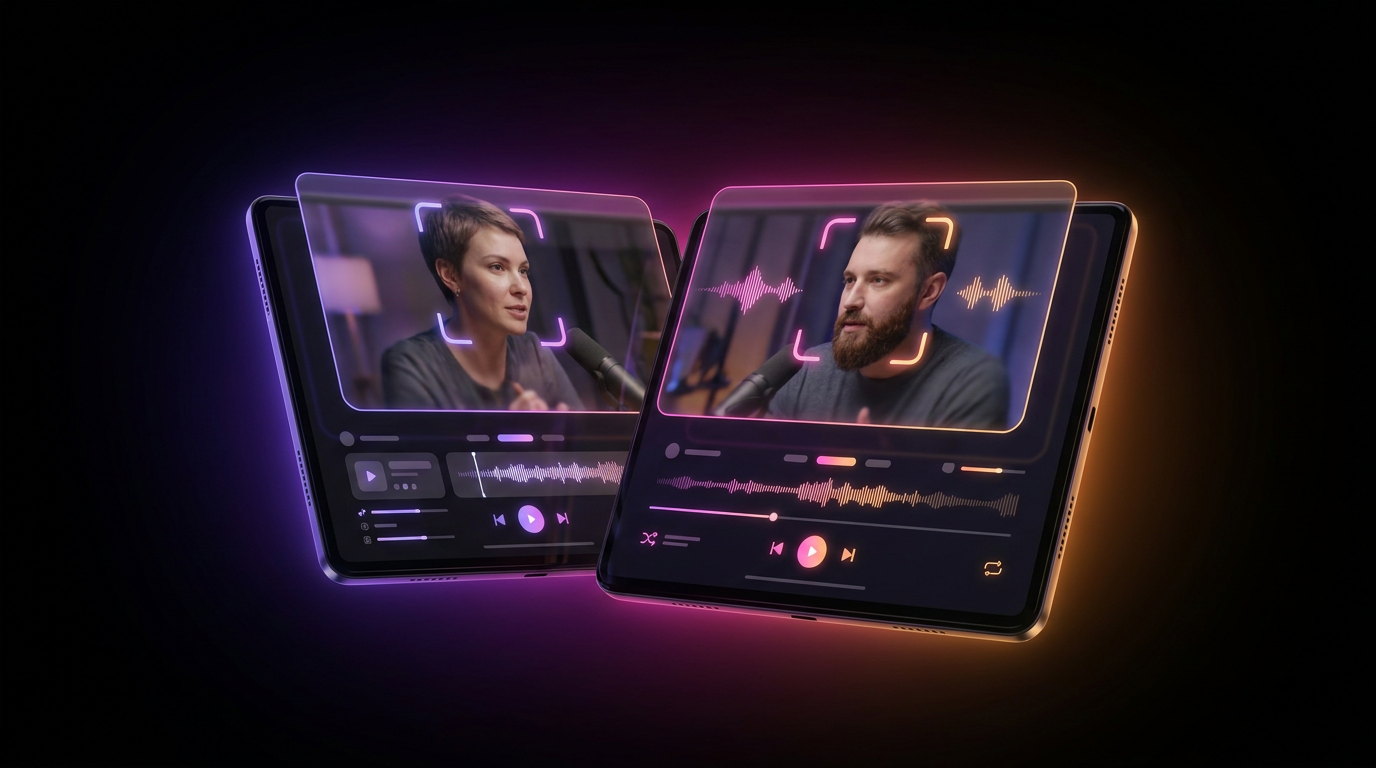
- Audio-Visual Active Speaker Detection: Traditional auto-switching relies purely on audio gating—whoever is loudest gets the camera. This fails when guests laugh, cough, or talk over each other. Modern AI split screen technology analyzes the audio waveform while simultaneously tracking visual mouth movements. This dual-layer verification ensures the camera only cuts or highlights the person actually delivering the dialogue.
- Dynamic Face Tracking and Bounding Boxes: When converting a horizontal 16:9 shot into a vertical 9:16 frame, static cropping is dangerous. If a guest leans back or gestures widely, they fall out of frame. AI tools draw an invisible bounding box around the speaker's face and shoulders, dynamically adjusting the crop frame frame-by-frame to keep them dead center.
- Contextual Layout Switching: The best AI doesn't just lock into a 50/50 split. If a guest tells a long, emotional story, the AI will switch to a full-screen shot of that guest. When the host interrupts or a rapid back-and-forth begins, the software instantly reverts to a stacked split screen to capture both reactions.
Why Manual Framing is Killing Your Workflow
Let’s break down the math of manual editing versus AI automation.
If you record a 60-minute podcast with two guests, extracting five high-quality, one-minute vertical clips manually requires:
- Scrubbing the timeline to find engaging moments (45 minutes).
- Nesting sequences and stacking video tracks (10 minutes).
- Manually keyframing the crop to keep faces in frame (30 minutes).
- Transcribing and styling dynamic captions (45 minutes).
That is over two hours of labor for just five clips.
With an AI split screen generator, the 60-minute file is ingested, analyzed, and chopped into 15-20 high-viral-potential clips in under ten minutes. The AI handles the cropping, the captions, and the framing automatically. You simply review the outputs, tweak the caption colors, and hit export. This shift from editor to curator is how top creators scale their output without burning out.
Comparing the Best Multi-Speaker Podcast AI Tools
The market is flooded with AI clipping tools, but not all of them handle multi-speaker formats effectively. If the AI struggles to differentiate between voices, your split-screen clips will look erratic and unprofessional.
Here is how the top tools stack up when handling auto layout podcast workflows:
| Tool | Split-Screen Accuracy | Face Tracking Quality | Auto-Posting Features | Price Tier |
|---|---|---|---|---|
| Opus Clip | High (Good speaker detection) | Strong | No (Requires external tools) | High (~$19/mo base) |
| Descript | Medium (Requires manual tweaking) | Basic | No | Medium |
| CapCut | Manual/Basic AI | Good | No | Low/Free |
| Viral Day | Very High (18 parameter analysis) | Exceptional | Yes (Direct to TikTok/Reels) | Very Low (4x cheaper) |
If you are currently paying a premium for Opus Clip just to get decent split screens, you are likely overpaying. A highly effective alternative is Viral Day. It is engineered specifically for viral short-form content, serving as a direct Opus Clip alternative but packed with superior features.
Not only does it offer flawless AI split screen generation with precise face tracking, but it evaluates your clips against 18 distinct viral analysis parameters to ensure you are only publishing top-tier content. Furthermore, it operates at roughly a quarter of the cost of its competitors.
Step-by-Step: Setting Up an Auto Layout Podcast Workflow
Transitioning from manual editing to an automated workflow requires setting up your default templates correctly. Here is the exact blueprint for generating flawless split-screen clips.
Step 1: Ingestion and Parameter Setting
Start by uploading your raw video file or pasting a YouTube link directly into your AI tool. High-quality inputs yield high-quality outputs. Ensure your source file is at least 1080p, though 4K is highly recommended when relying on AI to punch in and crop faces.
During the ingestion phase, dictate the clip length. For platforms like TikTok and Shorts, set your target duration between 30 and 60 seconds. This is the sweet spot for audience retention and algorithm prioritization.
Step 2: Choosing the Split-Screen Configuration
Most advanced multi-speaker podcast AI platforms will offer a few layout choices once the clips are generated:
- Standard 50/50 Stack: The host is on top, the guest is on the bottom. Ideal for rapid banter and debate.
- Dynamic Speaker: The layout changes based on who is talking. It might start as a split screen, cut to the guest full-screen during a long answer, and cut back to the split for the reaction.
- Picture-in-Picture (PiP): The main speaker takes up the full vertical frame, while a small circular or rectangular cutout of the listener is placed in the corner. This is excellent for reaction-heavy gaming podcasts or reaction videos.
Select the layout that best matches the energy of the specific clip.
Step 3: Dialing in Safe Zones and Captions
Vertical video platforms have notorious "dead zones" where UI elements (like buttons, descriptions, and profile pictures) cover your video.
When setting up your AI split screen, ensure your captions are placed in the center-middle or upper-middle of the lower frame. Keep your captions to 15-20 characters per line (roughly 2-3 words). Fast, punchy captions keep the viewer's eyes moving and drastically increase retention rates. Use the brand kit settings to bold essential keywords in a contrasting color (like neon yellow or green) to make the text pop against the background.
Step 4: Exporting at Maximum Quality
Do not let the AI compress your hard work. Always check your export settings. You want to export at 1080p resolution with a frame rate of at least 30fps (60fps if your source file supports it). Ensure the bitrate is set between 15 and 20 Mbps. If the bitrate is too low, the fast-moving captions and dynamic face tracking will cause pixelation and artifacting when compressed by TikTok's servers.
Advanced Formatting: Brand Kits and B-Roll
To stand out in a sea of AI-generated content, you must inject your brand's DNA into the automated output. Standard AI split screens can look generic if left untouched.
Utilize custom brand kits to upload your specific fonts (e.g., Montserrat, The Bold Font, or Proxima Nova). Add a customized progress bar at the bottom or top of the screen—this visual cue psychologically encourages viewers to watch until the end, significantly boosting your completion rate.
Additionally, consider adding a headline banner at the very top of the split screen. A static text block that says "Why 99% of Startups Fail" gives immediate context to a scrolling user, hooking them before the audio even registers.
Distribution: Taking Your Split-Screen Clips Viral
Generating 30 pixel-perfect AI split screen clips is only half the battle. The true bottleneck for most podcasters is distribution. Downloading gigabytes of vertical videos, transferring them to a phone, writing captions, finding trending audio, and posting them manually across three platforms every single day is exhausting.
This is where standard clipping tools fall short. They leave you with a folder full of files and no distribution mechanism.
To truly automate your podcast, you need a workflow that handles the publishing. By using a platform like Viral Day, you bridge the gap between creation and distribution. Once your 1080p split-screen clips are generated and analyzed for virality, you can use the built-in auto-posting feature to schedule them directly to TikTok, Instagram Reels, and YouTube Shorts.
Even better, modern algorithms heavily reward creator engagement in the first 30 minutes of a post going live. Utilizing AI auto-replies and automated DMs for commenters can artificially spike your early engagement metrics, pushing your split-screen clips onto the For You Page faster than manual posting ever could.
Conclusion
The era of manually keyframing and cropping multi-speaker podcasts is over. Implementing an AI split screen workflow allows you to extract maximum value from your long-form content with a fraction of the effort. By understanding active speaker detection, optimizing your layouts, and automating your distribution, you can build a content machine that scales effortlessly.
Stop wasting hours on manual edits and stop overpaying for basic clipping tools. If you want pristine 1080p split screens, precise face tracking, 18-parameter viral analysis, and built-in auto-posting—all at a quarter of the price of the competition—start automating your podcast today with Viral Day.