YouTube does not allow creators to upload custom image files (like JPGs or PNGs) as thumbnails for YouTube Shorts. To set a specific cover image, you must select a frame directly from your video timeline using the YouTube mobile app for Android or iOS during the upload process. If you upload a Short via desktop YouTube Studio, the system automatically assigns a random frame, and you cannot change it later. For creators who want a fully custom-designed thumbnail featuring text and graphics, the only supported method is to edit that custom image directly into the video file as a brief sequence before transferring the file to a mobile device for publishing.
Official YouTube Shorts Thumbnail Rules
According to YouTube's official documentation on video thumbnails, standard long-form videos allow verified accounts to upload custom image files. However, this functionality is explicitly disabled for Shorts. Creators cannot upload a separate thumbnail file, nor can they change the thumbnail after the Short has been published.
This strict policy means your editing and uploading workflow must be intentional. If you select the wrong frame, or if you forget to choose one entirely before hitting publish, your only recourse is to delete the video from your channel, re-upload the file, and select the correct frame. Deleting and re-uploading can disrupt your publishing schedule and erase any initial views or engagement a video may have gathered in its first few minutes live.
How to Select a Frame During Mobile Upload
The frame selection tool is exclusively available on the YouTube mobile application. YouTube's instructions for creating Shorts detail the exact steps required to choose your cover image before the video goes live to the public.
- Open the YouTube app on your Android or iOS device and tap the Create (+) button at the bottom center of the screen.
- Select Upload a video (if your file is already edited and saved to your camera roll) or Create a Short.
- Once your video is selected and you navigate through the initial trimming and editing screens, you will reach the final Add details screen.
- Look at the video preview thumbnail in the top left corner of this screen. Tap the Pencil icon overlaid on the preview.
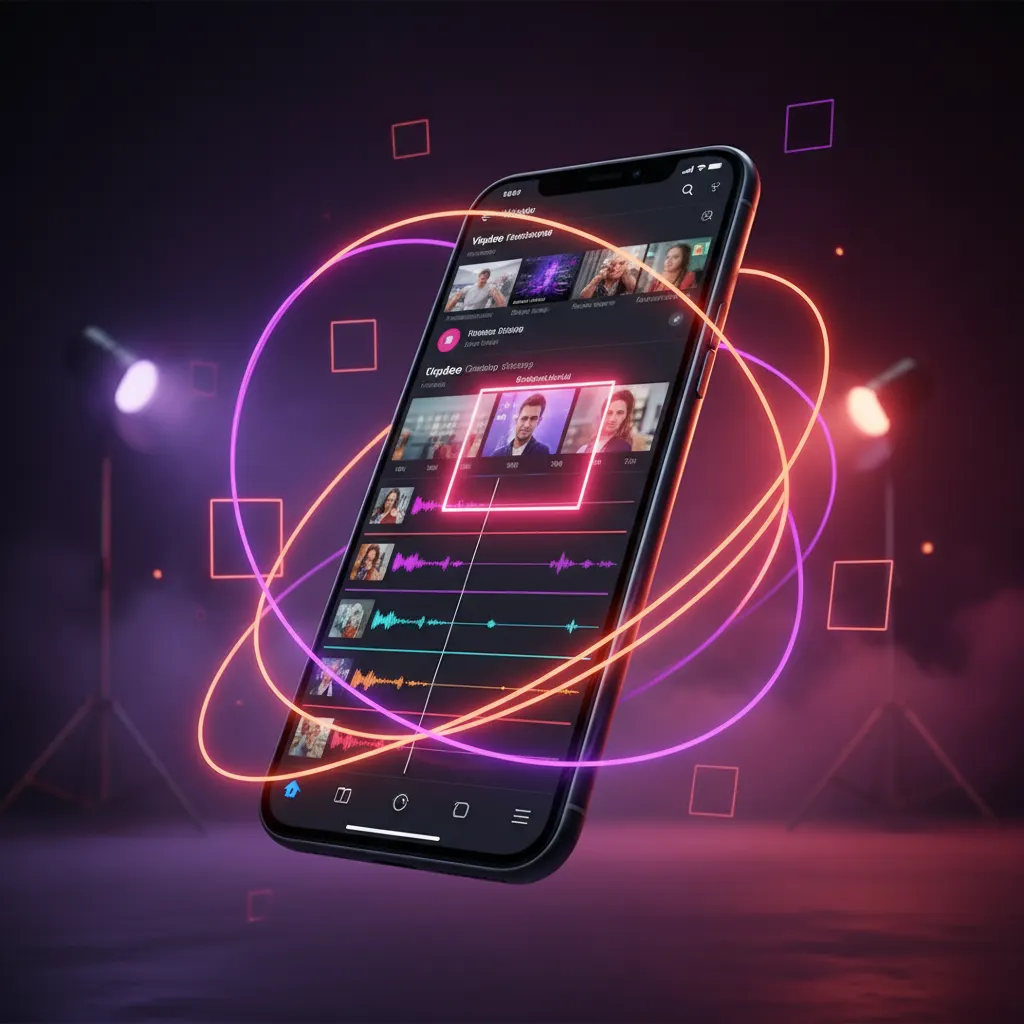
- A timeline scrubber will appear at the bottom of the screen. Drag the slider to the exact frame you want to use as your thumbnail.
- Tap Done to lock in your selection, fill out your title and description, and proceed to publish.
This manual selection process is mandatory for every single Short if you want control over its appearance on your channel page.
The "Embedded Frame" Workaround for Custom Designs
Because you cannot upload a separate image file, creators who want highly stylized thumbnails—featuring large text, graphics, or heavily edited faces—must bake the image directly into the video file during the editing phase.
To execute this workaround, design your custom vertical thumbnail in your preferred image editor. Then, import that flat image into your video editing timeline. Place the image either at the very beginning or the very end of your clip.
While a single frame is technically enough for the YouTube app to recognize, a 1-frame duration (approximately 0.03 seconds at 30 frames per second) is incredibly difficult to select manually using the mobile app's scrubber. Your finger will likely skip right past it. To make the selection process reliable and frustration-free, stretch the custom image so it stays on screen for 3 to 5 frames.
This duration is long enough to easily catch with the mobile slider, but short enough that viewers scrolling through the Shorts feed will barely register the flash of the image before the video loops or they swipe away to the next piece of content. For more detailed guidance on ensuring your video meets platform standards before publishing, review our 10-Item Viral Clip Checklist for 2026 (Before You Post).
Designing the Perfect Embedded Frame: Dimensions and Safe Zones
When designing the custom frame you intend to embed, you must account for the unique aspect ratio and user interface of YouTube Shorts. The canvas size should be exactly 1080 by 1920 pixels (a 9:16 aspect ratio). However, not all of that space is visible to the viewer.
Unlike standard desktop thumbnails, Shorts thumbnails are often viewed on small mobile screens and are heavily overlaid with user interface elements.
- The Bottom Zone: The bottom 20% of the screen is typically obscured by the video title, channel name, subscribe button, and audio track information.
- The Right Edge: The right side of the screen is covered by the engagement stack, which includes the like, dislike, comment, and share buttons.
- The Top Edge: The top 10% may have UI elements or camera notches depending on the specific mobile device.
To ensure your custom frame is effective, keep all critical text and visual focal points dead center. High contrast colors and large, legible fonts are essential, as the image will be displayed at a fraction of the size of a standard video thumbnail. For a deeper dive into visual strategies and layout planning, see our guide on YouTube Shorts Thumbnail Policies: How to Choose the Right Frame.
Navigating Desktop Upload Limitations
Many professional editors, agency teams, and channel managers prefer to upload content in bulk using YouTube Studio on a desktop computer. Unfortunately, the desktop version of YouTube Studio does not currently include the pencil icon or the timeline scrubber for Shorts.
If you upload a vertical video under 60 seconds via desktop, YouTube’s algorithm will randomly select a frame for the thumbnail. Even if you use the scheduling feature on desktop to publish the video at a later date, you cannot go back in and change the auto-selected frame.
If your channel relies heavily on the visual consistency of custom thumbnails on your channel page, you must adapt your workflow. You will need to transfer your finished, exported video files from your computer to a mobile device—using cloud storage like Google Drive, Dropbox, or local transfer methods like Apple AirDrop—and complete the final upload process on a phone or tablet.
Why Shorts Thumbnails Still Matter
It is a common misconception that Shorts thumbnails do not matter because the vast majority of views come from the algorithmic Shorts Feed, where thumbnails are never displayed to the user. While the feed is the primary traffic driver, thumbnails still play a crucial role in your overall channel architecture.
When a viewer discovers a Short they enjoy, they often click through to visit your main channel page. There, they are greeted by the Shorts shelf. A cohesive, readable, and visually appealing set of thumbnails on this shelf can encourage binge-watching and convert a casual viewer into a long-term subscriber. Furthermore, Shorts can surface in standard YouTube search results, Google search results, and on the YouTube home page, where the thumbnail is fully visible and acts as the primary click-through mechanism.
Streamline Your Shorts Workflow
Managing multiple video files, embedding custom frames, and manually transferring files to mobile devices can significantly slow down your publishing schedule. Utilizing an AI YouTube Shorts generator can help automate the clipping and formatting process, ensuring your videos are perfectly sized and paced before you upload.
If you are scaling a clipping channel or managing multiple accounts, Viral Day provides a professional video editor and AI-assisted clip selection to streamline your entire workflow. The platform analyzes source videos up to 10 hours long across 18 viral-potential signals and includes automatic captions with styles derived from After Effects compositions. You can schedule content up to 60 days ahead with unlimited posts to supported social networks on every paid plan. The entry plan starts at $9.99/month for 30 hours of processing, giving you the tools to edit and publish efficiently.