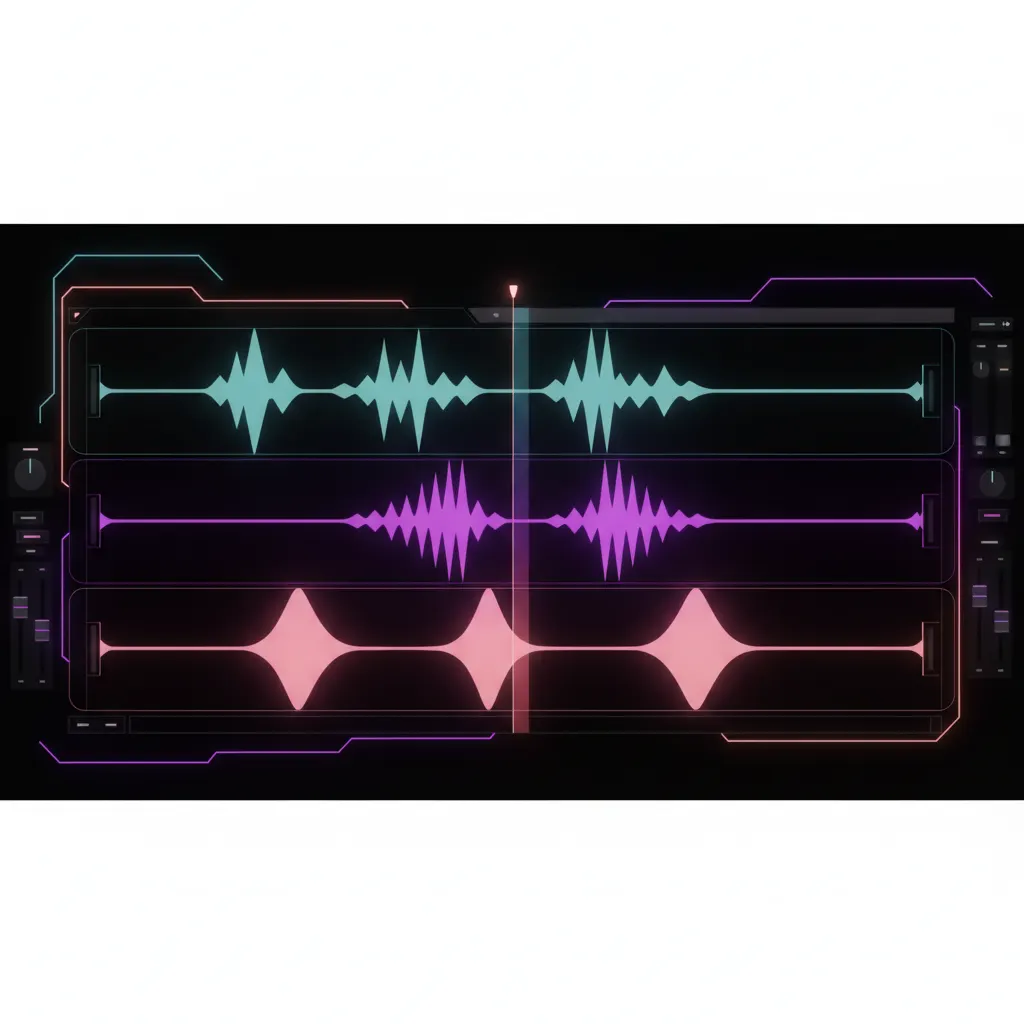
To fix captioning and speaker-tracking errors caused by overlapping audio in podcast clips, you must isolate the individual voice tracks before running them through an AI generator. When hosts and guests talk over each other, AI transcription models merge the dialogue into a single, inaccurate text stream. By applying audio ducking or manually muting the non-dominant speaker in your digital audio workstation (DAW) or non-linear video editor (NLE), you provide the AI with a clean audio signal for accurate captions and active speaker detection.
Overlapping audio, commonly known as cross-talk, is one of the most frequent hurdles for podcast editors transitioning to short-form video. Natural conversation involves interruptions, simultaneous laughter, and agreement phrases like "yeah" or "exactly." While this sounds organic to a human listener, it fundamentally breaks the automated systems that generate short-form content.
Why Cross-Talk Breaks AI Transcription and Speaker Tracking
AI clipping tools rely on two core technologies to generate short-form videos: speech-to-text transcription and speaker diarization (the process of partitioning an audio stream into homogeneous segments according to the speaker identity).
When two people speak at the exact same time on a mixed track, the transcription model attempts to decode both voices simultaneously. The result is usually a string of gibberish text in the captions. More importantly, overlapping audio confuses the active speaker detection. If the software cannot determine who is talking, it cannot execute the automatic camera switching required for split-screen or punch-in edits. The camera will either rapidly switch back and forth between the host and guest, or it will freeze on the wrong person entirely.
Isolating Multi-Speaker Tracks Before Clipping
The foundation of fixing cross-talk is recording your podcast on separate tracks. If your host and guest are recorded onto a single, merged audio file, separating their voices after the fact is extremely difficult and often leaves behind digital artifacts that degrade audio quality.
Assuming you have separate tracks for each speaker, your goal is to clean them up so that only one dominant voice is active at any given millisecond during a clip. If you are preparing a long-form episode for clipping, you can read our guide on how to automatically clean podcast audio before AI clipping for broader workflow tips. For addressing specific moments of cross-talk, you have two primary methods: automated audio ducking and manual track muting.
Using Audio Ducking to Resolve Overlaps
Audio ducking is a technique where the volume of one track is automatically reduced (ducked) whenever the volume of a control track exceeds a certain threshold. In the context of a multi-speaker podcast, you can set the primary speaker's track to duck the secondary speaker's track during an interruption.
Ducking in Audacity
If you use Audacity to process your podcast audio before bringing it into a video editor, you can utilize its built-in ducking feature. According to the official documentation on Auto Duck, this effect reduces the volume of one or more selected tracks whenever the volume of a single unselected "control track" placed underneath them reaches a particular level.
To apply this to a podcast:
- Place the track of the person you want to silence (the interrupter) above the track of the person you want to hear (the primary speaker).
- Select the track you want to silence.
- Open the Auto Duck effect.
- Adjust the "Duck amount" to a heavy reduction (e.g., -24 dB or more) so the interrupting voice is entirely removed from the mix during the overlap.
- Adjust the threshold so the ducking only triggers when the primary speaker is talking loudly enough.
Ducking in Final Cut Pro
For video editors assembling their clips directly in an NLE, Apple provides native tools to handle overlapping audio. According to Apple, you can duck audio in Final Cut Pro to highlight a specific clip by lowering the volume of other competing audio clips in the timeline.
Furthermore, if you only need to fix a specific 30-second segment for a short-form clip, you can adjust volume automatically across a selected area using the Range Selection tool. This allows you to draw a box over the exact moment of cross-talk and apply a volume reduction to the secondary speaker without affecting the rest of their track.
Manual Track Muting vs. Automated Ducking
While audio ducking is efficient for long-form episodes, short-form clips often require a more surgical approach.
| Feature | Automated Audio Ducking | Manual Track Muting (Keyframing) |
|---|---|---|
| Speed | Fast. Can be applied across an entire 1-hour timeline in seconds. | Slow. Requires listening to and editing individual seconds of footage. |
| Precision | Moderate. May accidentally cut off natural reactions or fail to trigger if the threshold isn't perfect. | High. You decide exactly which voice is heard at every frame. |
| Use Case | Preparing full-length podcast episodes for bulk AI clipping. | Fixing a specific 60-second clip where the AI transcription failed. |
If you are cutting a specific viral moment and the guest laughs loudly over the host's punchline, automated ducking might suppress the laugh entirely. Manual keyframing allows you to lower the guest's volume just enough so the host's words transcribe correctly, while still keeping the natural energy of the laugh in the background.
Re-Exporting the Cleaned Audio for AI Clipping
Once you have resolved the overlapping audio—either by hard-muting the non-speaking track or ducking it heavily—you must export the video with this new, cleaned audio mix.
This exported file is what you will feed into your AI clipping software. Because the cross-talk has been eliminated, the AI transcription model will clearly hear one voice at a time. This results in perfect captions and allows the software to accurately track the active speaker. For more on how this impacts your visual layout, review our guide on how to use AI split screen for multi-speaker podcasts automatically.
Streamlining Your Workflow with Viral Day
Once your audio tracks are isolated and cross-talk is minimized, you can accelerate your short-form content creation using an AI podcast clip maker like Viral Day.
Viral Day is an AI clipping platform designed for professional workflows. It features AI-assisted clip selection that analyzes your footage across 18 viral-potential signals. You can upload source videos up to 10 hours long, making it easy to process massive podcast episodes. The platform provides automatic captions with styles derived from After Effects compositions, a professional video editor, and the Real Prisma proprietary multimodal reframing for 9:16 video.
For teams managing high-volume output, Viral Day includes bulk editing, a brand kit, and content scheduling up to 60 days ahead. Plans that include social publishing offer unlimited posts to supported social networks. The entry plan starts at $9.99/month and includes 30 hours of processing time. For full details on capabilities, visit the Viral Day Pricing page.